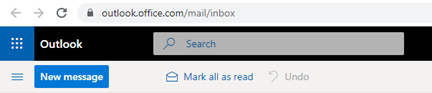
At any time, you can access your Email account through Outlook using your web browser. This guide uses Google Chrome for its examples. Other browsers will follow similar steps.
- On a computer, go to office.com and click sign in

- You will now see the homepage for Office. Click the Sign in Highlighted below in red
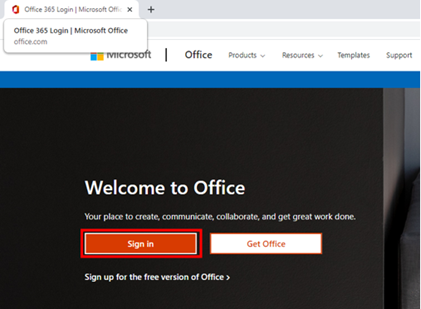
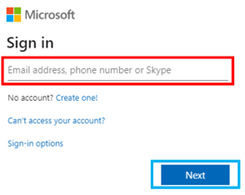
- Click on the text box, highlighted below in red
- Enter your @kingsely.org email address. And Click the Next Highlighted in blue
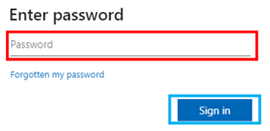
- Now enter your password in the text box. Highlighted in red below. And Click the Sign in Highlighted in blue
- To continue you will be required to authorise access via your Microsoft Authenticator App. If you have not already set this up, then you will not see this page. Please see the Multi-factor Authentication Setup guide to setup the Microsoft Authenticator app.
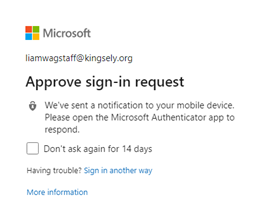
- On your mobile device you will receive the following notification. Click the APPROVE Highlighted below in red.
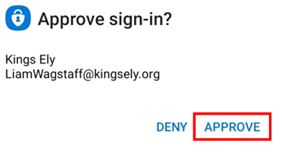
If at any time you receive this notification and you are not trying to access your Office account, please refrain from pressing the APPROVE button.
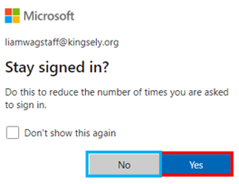
- Your browser should now show the following page. If you wish to stay logged into your account even when you close the page, then click the Yes Highlighted below in red. Do not click this if you are on a public device. If you do not wish to do this then click the No button. Highlighted below in blue.
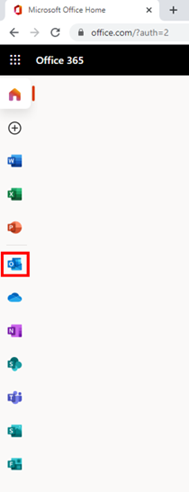
- On the left side on the page, click on the Outlook icon, highlighted below in red.
You should now see your inbox for Outlook. As you have already logged into the Office.com website. Outlook does not require you to sign in again.