
If you are setting up MFA for the first time, please make sure you contact ICT Team by creating a ticket before following these instructions to let us know you want MFA enabled on your account.
- Install the Microsoft Authenticator app using your phones App Store.
- On a computer, go to office.com and click sign in. If you are already signed in, you will need to sign out and go back to office.com and sign in again.
- Enter your username and password as normal.
- You will then be prompted with a request for more information, click Next.

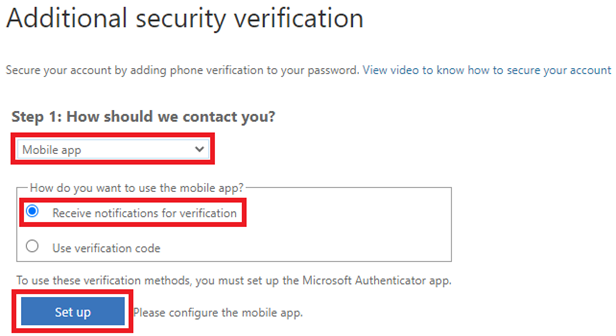
- On the next page that appears, select Mobile app from the drop-down menu, select Receive notifications for verification from the checkbox list then click Set up.
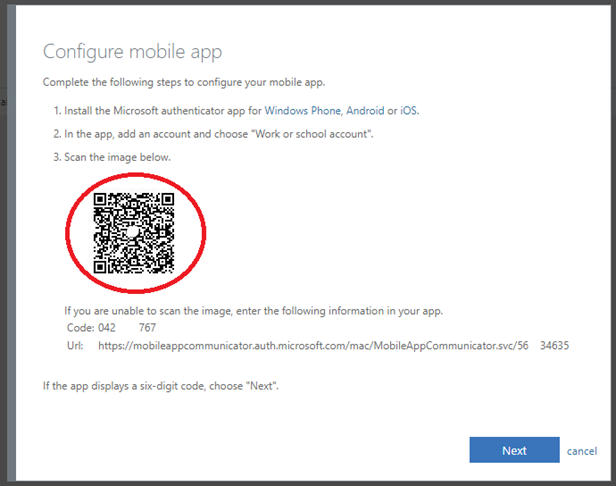
- Leave the popup that shows a QR code open after clicking Set up in the previous step, you will now need your mobile phone.
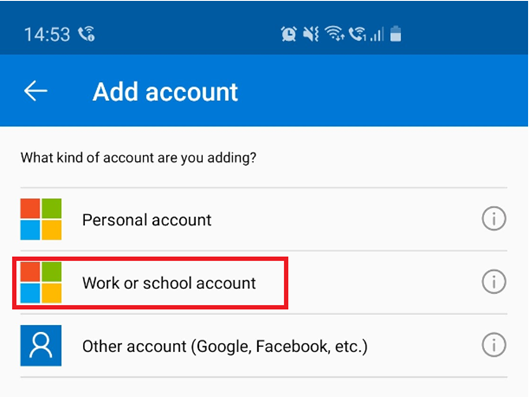
- Open the Microsoft Authenticator app, skip through the first time use slides and then tap the + icon
- Select Work or school account. The phone will then show the camera to scan the QR code shown on the popup left open in step 6. Scan this QR code.
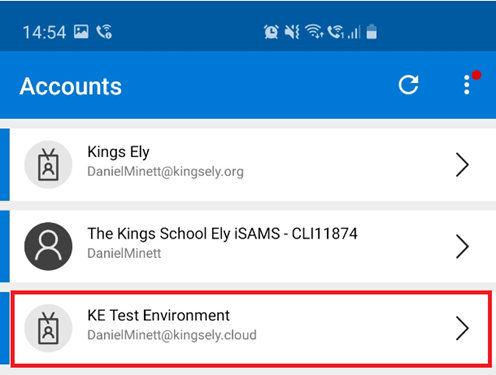
- Once you have scanned the QR Code, you will be returned to the main screen of the Microsoft Authenticator app, you will see the new account has been added.
- On your computer, click on the ‘Next’ button and a test will occur to make sure MFA has been setup correctly. Please click on ‘Approve’ when it pops up on your mobile device.
- The next time you sign into a Microsoft service such as an Office 365 product or a service such as iSAMS or FireFly which uses the same Microsoft O365 login method when working away from school, you will be prompted to approve your sign in attempt, to prove you are the account owner.
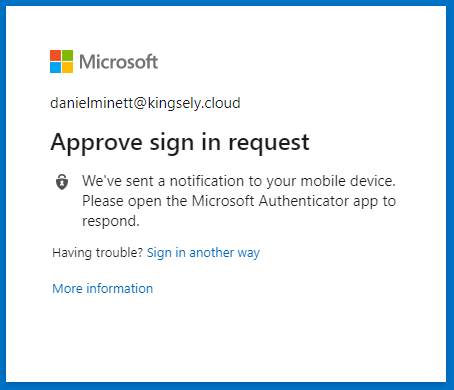
You will see a variation of the below notification style, please accept this to finished the login process.
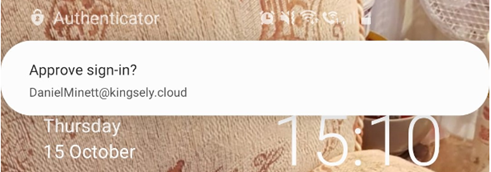
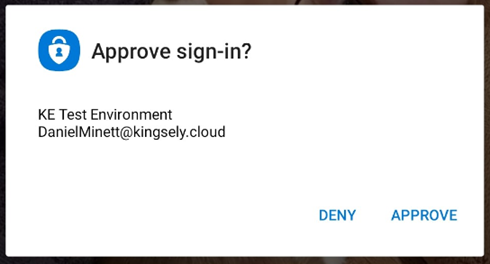
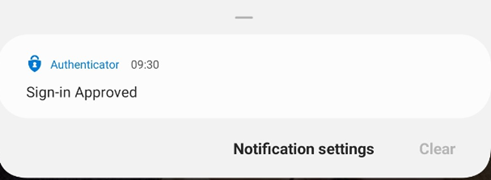
- Please be aware that, at this time the authenticator notification does not specify the source of the request, so if you have not just signed into a service requiring Multi-factor Authentication, please DENY the request. This is to ensure malicious users who could have obtained your login credentials DO NOT gain access to your account
If unsolicited requests are sent frequently, please make the ICT Team aware by creating a ticket.