
This guide does not apply to resetting forgotten passwords
- On either a computer or mobile device, go to office.com and click sign in. You may already be signed in, if so, there is no need to log out and back in again.
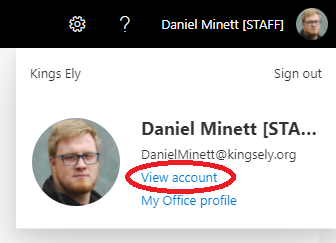
- Once logged in, you need to open My Account. To open My Account find your name/profile picture in the top right corner of the page, click it and then click View account.
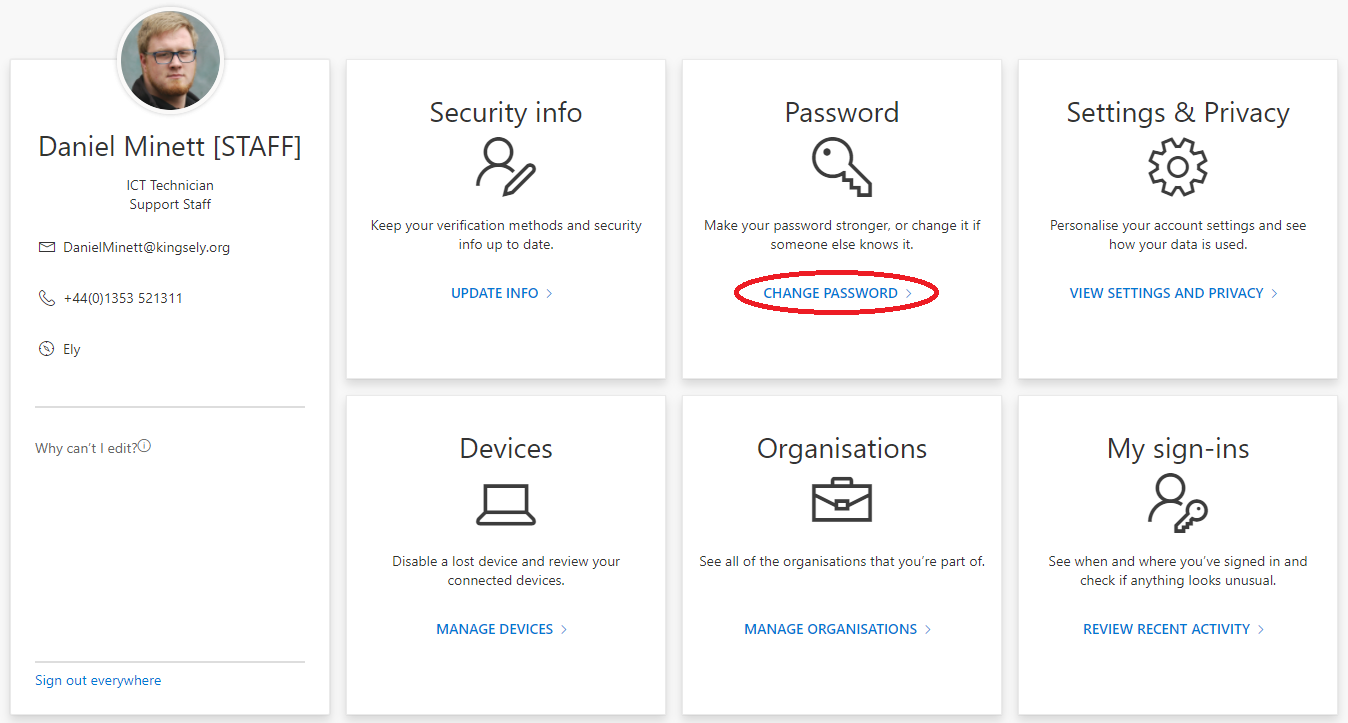
- A new page will open, please then click CHANGE PASSWORD.
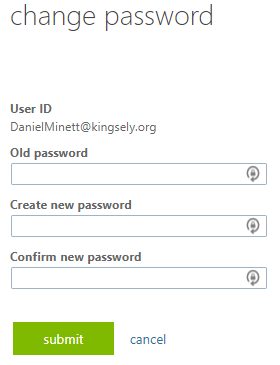
- Again, a new page will open, you may or may not be asked to reauthenticate depending on how recently you signed into office.com. If you are asked to sign in again then sign in as normal. On the new page you will then be able to change your password. You are required to enter your old password and then the new password twice. Enter these passwords and click submit.
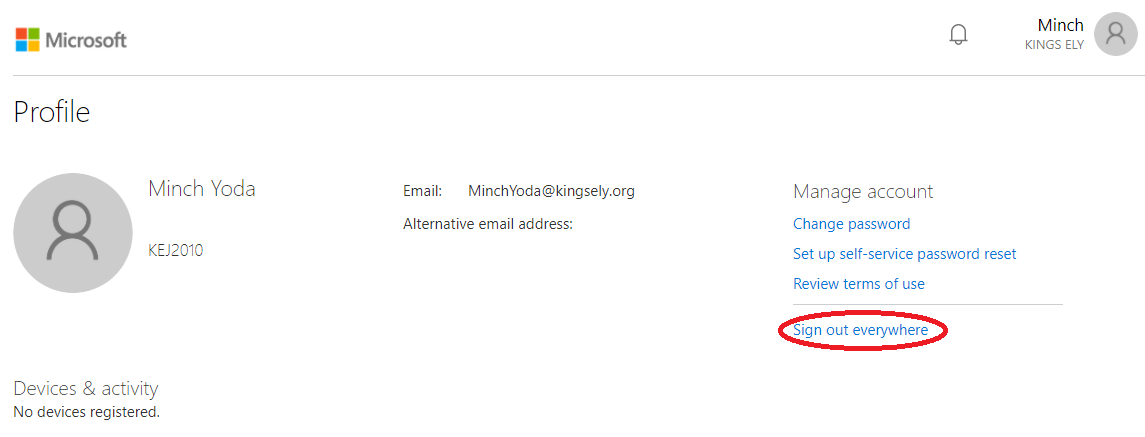
- After changing your password, you will be redirected back to your profile, it is recommended to reduce the chances of any devices trying to login with your old password which can cause your account to become locked out to sign out of Office 365, by clicking Sign out of everywhere.
- Please note that if you are changing your password off-site, the password for logging into your school laptop will remain as the old password until you bring it back on-site and reconnect to our servers. For example, you would use your old password to initially login into your laptop, then your new password to login to Office 365, Outlook, iSAMS etc.
When you bring your laptop back onsite and plug it into our network, your password will automatically update on your laptop so you would then use your new password to login. - Please remember, as has always been the case that if you have signed into the school WiFi or setup email in any mail application on any personal mobile devices that you will need to change these to reflect the new password as when you are next at school the WiFi system will lock you out of your account due to trying to authenticate with an incorrect password. If you have any difficulties or concerns during this process, please contact the IT Team in the usual way.